
Hiring an agent
An agent is a specialist with its own instructions and skills. You hand it work with an @mention and it owns the task end to end.
Use an agent for multi-step work
An agent is a specialist that combines instructions and skills to own a multi-step task. In chat, type @ and its name to hand it work; its result appears as a separate card in the conversation.
Choose a built-in agent from the catalog, or create one with a name, instructions, skills and a personal or project scope. Use a skill for one predictable operation; use an agent when the work needs judgment or several steps.
You can stop an agent while it runs. The website explains model bindings, autonomy and the full editor options.
Giving an agent apps
Naming apps on an agent does two different things, and the editor is explicit about which one is on.
By default the list is a steer: the apps land in the agent's instructions ("you have access to these apps, use their tools freely") and nothing is blocked. The editor says so, told to use these apps, but not blocked from the others.
Turn on the switch above the list and the same list becomes a fence: told to use these apps, and blocked from every other one. It is off until you turn it on, and it does nothing until the agent names at least one app.
What an agent may do to your machine is a separate control, beside the apps rather than part of them: a read-only agent still uses its apps, and changes nothing on disk.
Built-in agents
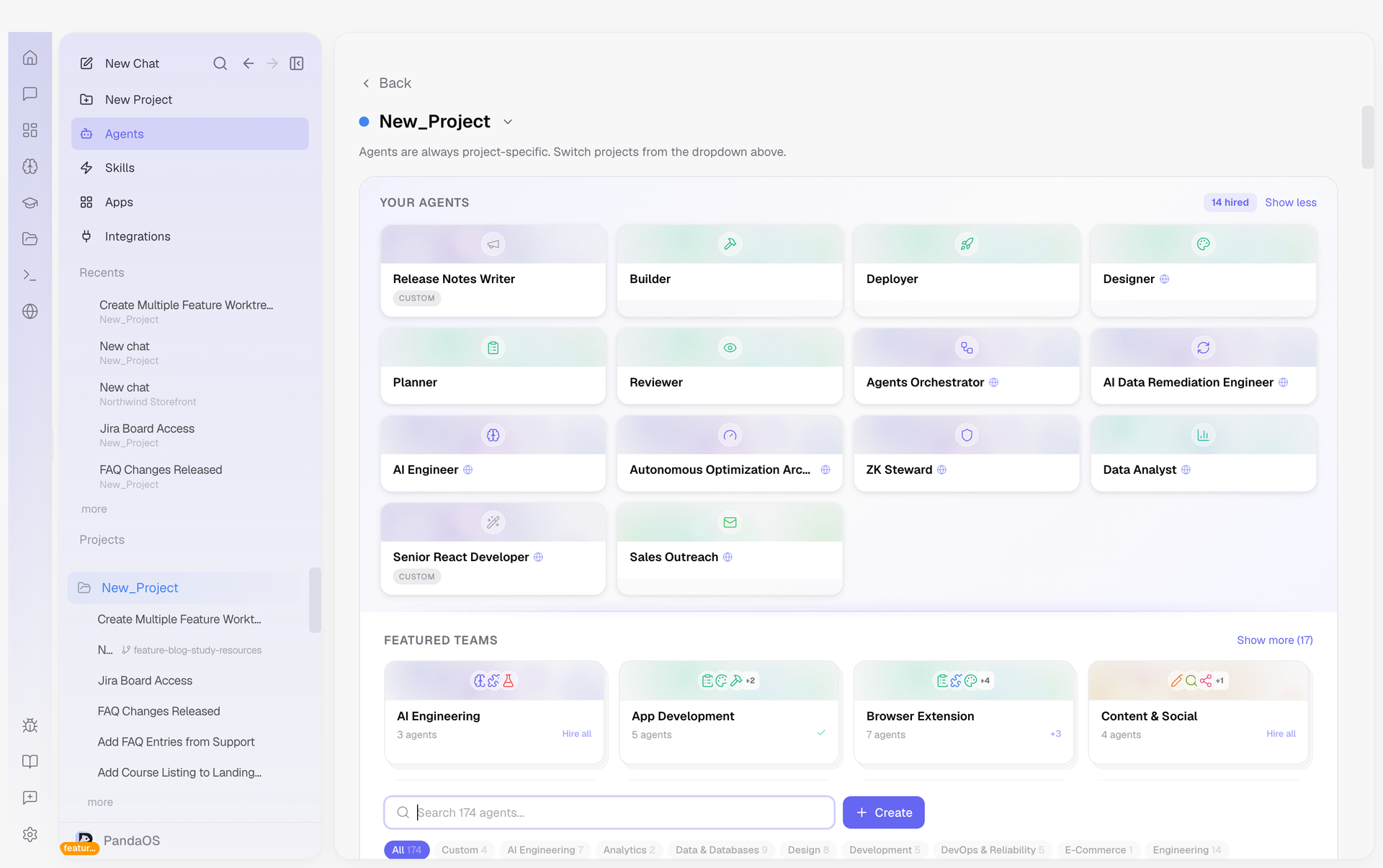
PandaOS ships with a set of pre-configured agents covering common roles - planning, code review, UI design, QA testing, and more. Each built-in agent comes with curated instructions and a pre-selected skill set tuned for its domain. You can browse available agents from the sidebar catalog, where each listing explains what the agent specializes in and the kinds of tasks it handles well.
Built-in agents are ready to use immediately and serve as good examples of how to structure your own custom agents.
The @mention interface
To invoke an agent during a conversation, type @ followed by the agent's name in the chat input. This hands the current task to that agent, which then works through it autonomously.
The agent's output appears as a distinct card in the conversation thread, making it easy to see what the agent produced separately from the rest of the discussion. You can @mention different agents at different points in a conversation - for instance, @planner to break down a feature, then @builder to implement the first slice.
Because agents return structured output rather than blending into the chat, you get a clear audit trail of who did what and can review each agent's contribution independently.
Creating custom agents
When the built-in agents don't match your workflow, you can create your own. In the agent editor you set:
- A name that you will use to @mention it
- A description of what it does, which is what the roster shows and what the model reads when deciding to use it
- Instructions that define its persona, priorities, and approach - this is where you encode domain expertise, team conventions, or specialized judgment
- Skills, apps and integrations it may draw on, which is what the agent is actually capable of doing
- Scope, whether the agent belongs to this project or follows you everywhere
- Default mode, how much autonomy it starts with
The instructions are the most important part. They shape how the agent reasons about problems, not just what tools it has access to. A "Frontend Reviewer" agent and a "Security Reviewer" agent might share the same code-review skill but apply it through completely different lenses based on their instructions.
Once saved, your custom agent is available via @mention across all your chats. You can edit, duplicate or delete it at any time, and a built-in agent you have modified carries a Reset to defaults control that puts the shipped version back.
Giving an agent its own model
An agent can carry a model binding, so the right work runs on the right model without you switching by hand. The editor's model section offers three modes:
| Mode | Behaviour |
|---|---|
| Inherit | The agent runs on whatever the chat is already using. This is the default. |
| Tier | The agent runs on your High, Medium or Low tier for whichever connection is active. A planner on High and a quick formatter on Low keeps cost sane without pinning either to a model name that will be superseded next month. |
| Model | The agent is locked to one connection and one model. When it activates, PandaOS switches the harness if it has to, then switches back when the agent is done. |
An agent can also carry a reasoning effort override, so a reviewer thinks harder than the chat that called it.
The first time an agent switches model automatically, PandaOS tells you it happened. You stay in control: the Tools menu in the chat bar carries a toggle that disables agent-driven model switching entirely, and with it off every agent runs on what you picked.
Agents that keep working
An agent handed a long task keeps going while you do something else, and you can stop it at any point: cancelling a running agent ends the run cleanly instead of leaving a half-finished turn behind.
Agents are not limited to chat. An automation can delegate a step to one, which is how a scheduled workflow gets an agent's judgment rather than a single prompt. Agents work the same way on every harness, so an agent written while you were on Claude Code still behaves when you switch to Codex or OpenCode.
When to use agents vs. skills
Use a skill when you have a clear, single-step task - "/git-commit", "/security-review", "/code-review". Skills are direct and predictable.
Use an agent when the task requires judgment, multiple steps, or a specific perspective. Agents shine when you need someone to own a workflow end-to-end rather than just execute one piece of it. If you find yourself chaining several skills together in a predictable pattern, that pattern is a good candidate for wrapping in a custom agent.