
Writing a skill
Write a skill of your own in Customize, so Panda follows your method whenever you call it.
How-to guide Updated 18 Nov 2026What you get
A skill you call with / in a chat of one project, or of every project. It is a folder with a SKILL.md file in it: a name, a one-line description and the instructions Panda follows. Write one when Explore has nothing for a job only your team does.
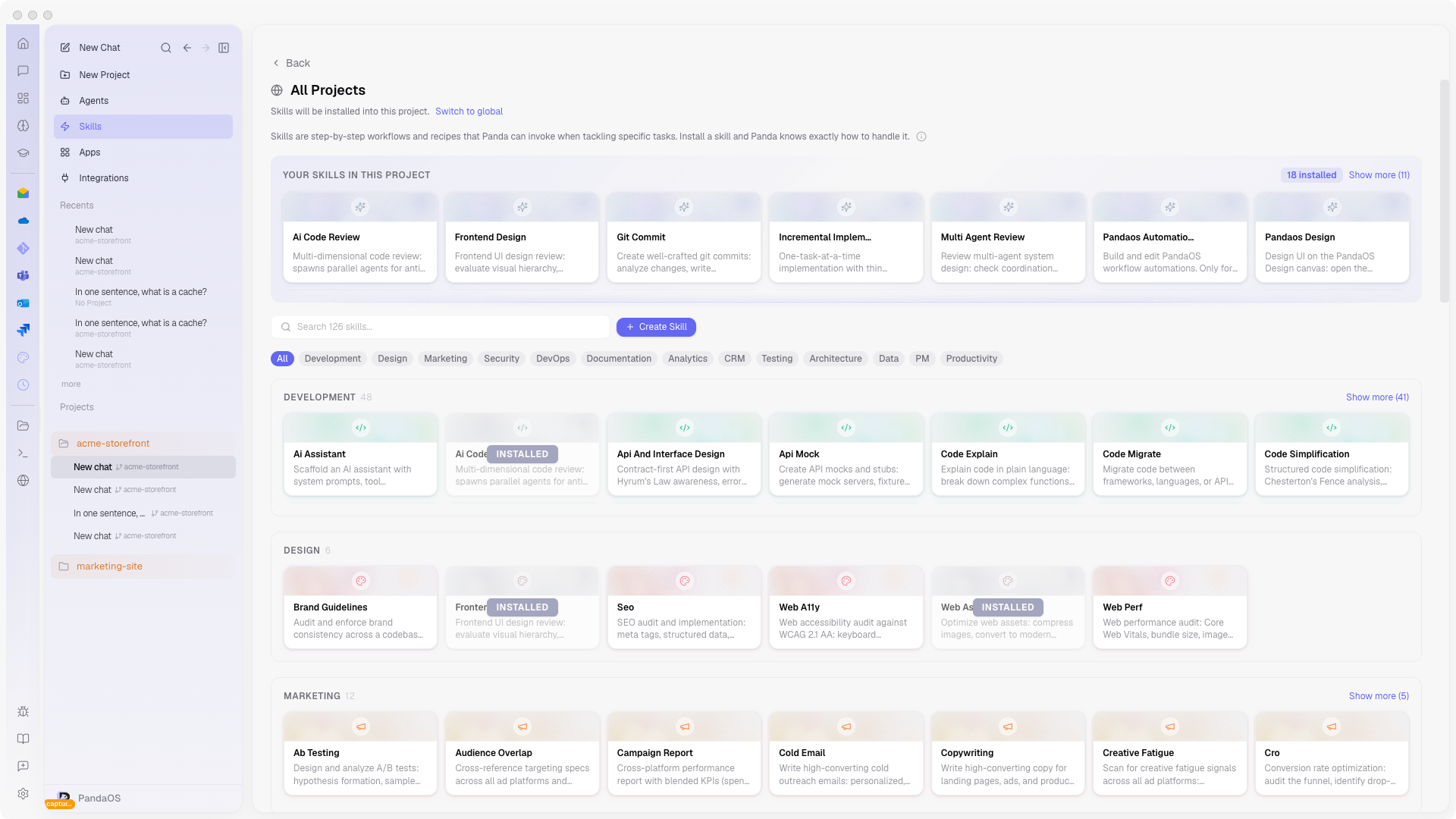
Write a skill
- Open Customize, pick Skills and press New skill.
It sits at the top right. - Describe what the skill should do and press Generate.
Panda writes the instructions from your words. Press Start blank to write them yourself. - Choose where it is available under Saves to: Everywhere or one project.
On a skill you already have, open it, press Edit and change Works in: Everywhere or the projects you pick. Saving moves the skill there. - Check Name, Description and Instructions.
The description is the line the slash command menu shows, and what Panda compares your requests with, so say when to use the skill. Add file... adds a Reference or Script file next to SKILL.md. Type a change into Refine this skill... to have Panda make it. - Press Create.
On a skill you are editing, the button reads Save.
Write one that works
Write down the method you would otherwise explain every time: the goal, the steps in order, and what the result should look like. A team might write a "database migration review" skill. It checks the change can be rolled back and flags missing indexes, in the way their own schema needs.
What you see when it worked
The skill appears in its group under Customize, Skills. Type / in a chat where it applies and it is in the list.
If it does not work
Create does nothing and a field says it is required
A skill needs a Name, and a new skill also needs a Description. Fill in the field that says so.
Project cannot be picked
A new skill lists every project under Saves to. On a skill you already have, open it, press Edit and pick the project under Works in. A skill your team installed, or one PandaOS installed, stays where it is.
The SKILL.md file
A project skill is kept in the project, in .pandaos/skills/<name>/, so everyone working in the project gets it. A Global skill is kept in the PandaOS data folder.
SKILL.md starts with a block of settings between two --- lines, followed by the instructions. PandaOS reads these fields:
| Field | What it does |
|---|---|
name | The name you type after / |
description | The line in the slash command menu, and what Panda matches requests against |
user-invocable | false keeps the skill out of the slash command menu |
disable-model-invocation | true stops Panda using the skill unless you call it |
argument-hint | A hint shown when you type the command, for example [7d or 30d] |
Other fields are left as they are when Panda updates the skill.