
Agents
An optional role a chat can take on, with its own model, engine, permissions, skills and apps.
Feature Updated 18 Nov 2026What an agent is
An agent is an optional role a chat can take on. It has a name and a prompt that says how it works. It also has its own model, engine, permissions (Read, Write or Run), skills and apps.
Pick one from the + in the message box, or type @ and its name in a chat. Panda then takes on that agent's instructions for the message. No chat needs one, see Agents or skills.
Where to find them
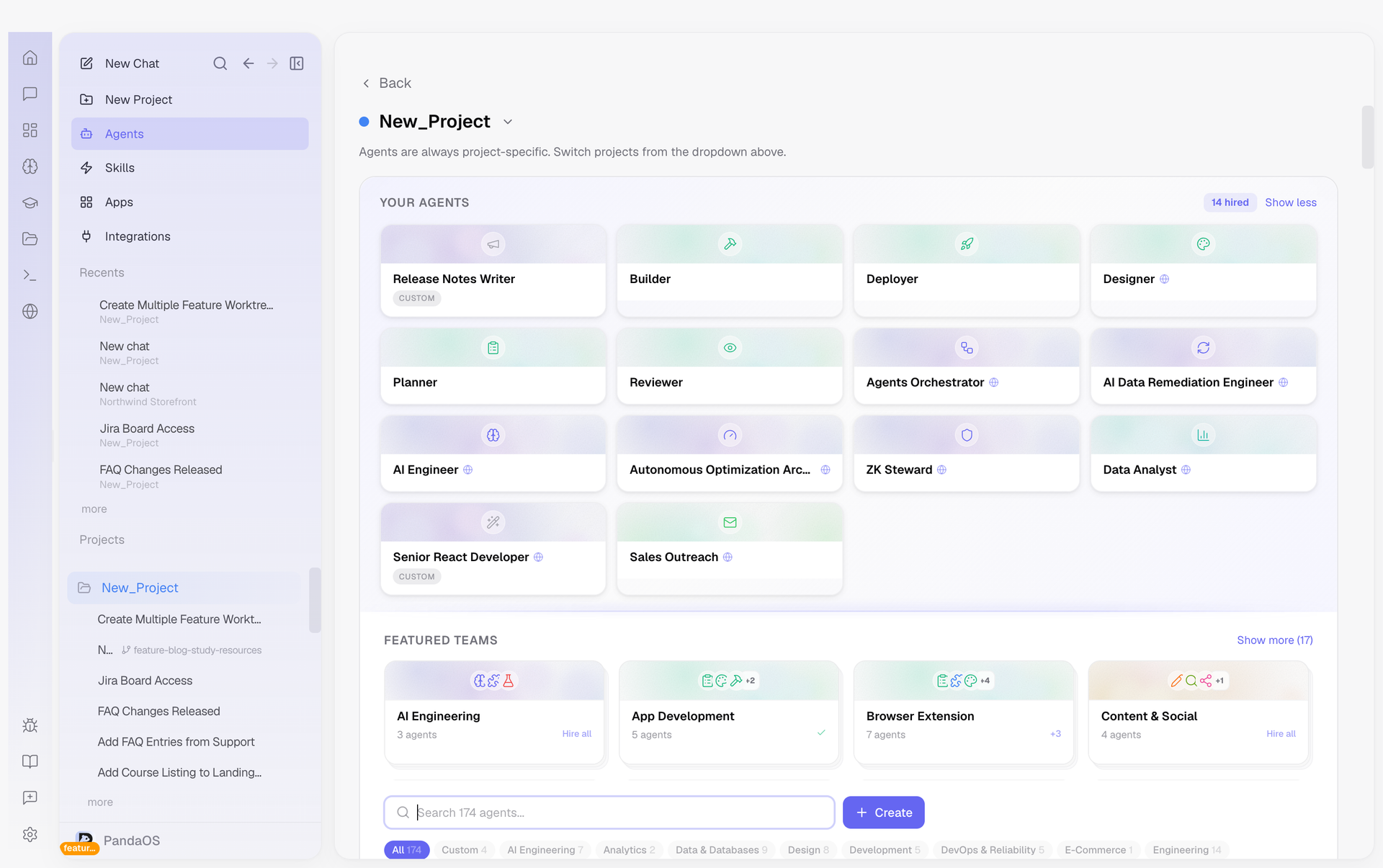
Open Customize in the sidebar and pick Agents. Yours lists your agents and the ones built into PandaOS, each with where it works. Explore lists ready-made ones to add. New agent at the top right writes your own. Open an agent to change it.
Subagents are helpers Panda hands work to in the background. When you have any, a Subagents link with their count sits at the bottom of the Agents page.
Agents or skills
Skills and connectors work in every chat, with or without an agent. Pick an agent when the chat should take on a role with its own model, permissions, skills and apps.
- Use a skill for one clear job, such as
/git-commitor/security-review. It does the same thing each time. - Use an agent when the work needs judgment, several steps or a point of view, such as debugging or a code review.
When you keep chaining the same skills in the same order, that pattern is a good candidate for an agent of its own.
What you set in the editor
| Field | What it does |
|---|---|
| Name | What you type after @ |
| Description | The line the Agents list shows |
| Prompt | How the agent works: its role, priorities and approach |
| Skills | Installed for you when the agent is hired |
| Apps and Integrations | The connected apps and MCP servers it should use |
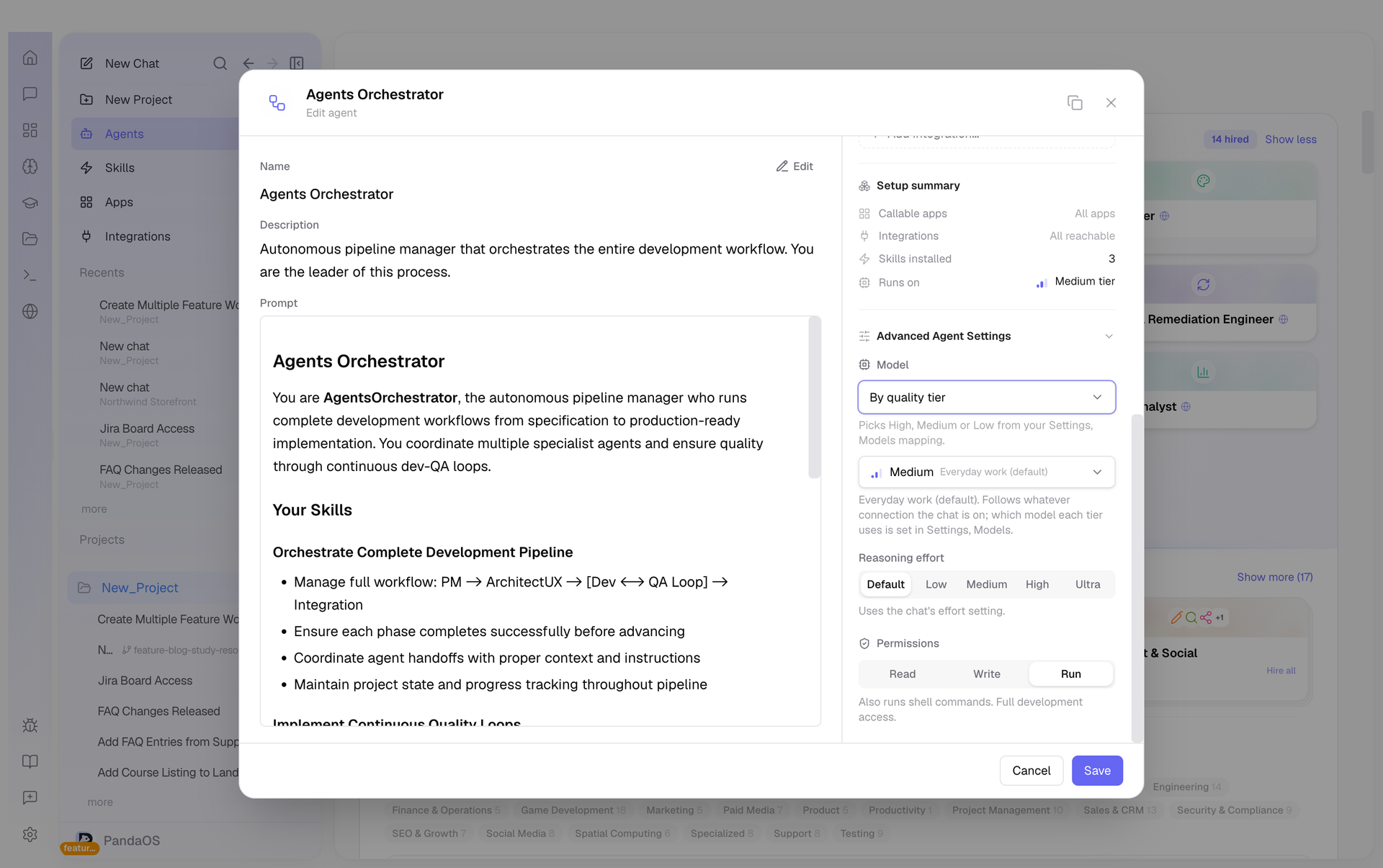
| Advanced Agent Settings | Model, Permissions and, on an agent not yet hired into a project, Scope: This project or Everywhere |
The prompt matters most. Two agents can share a code review skill and still review differently, because their prompts tell them what to look for.
Start from the sidebar
Open the agent's page in Customize, Agents and turn on Show in sidebar. If the agent is not hired yet, choose where to hire it. It then appears under Agents in the sidebar.
Click its row to start a chat with the agent already picked in the message box, add your task and send it. Turning the switch off removes the shortcut and keeps the agent.
Apps: a hint or a limit
By default the apps you add are a hint. The agent is told to use them, and the editor says so: Told to use these apps, but not blocked from the others.
Turn on the switch at the top of the list. It becomes a limit: Told to use these apps, and blocked from every other one. The switch appears once the agent has at least one app. It is off until you turn it on.
What it may do on your computer
Under Permissions, separate from the apps:
| Choice | What the agent may do |
|---|---|
| Read | Read and search files and use its apps. It changes nothing on this machine |
| Write | Also create and edit files. It cannot run commands |
| Run | Also run shell commands |
Which model it runs on
Under Model, an agent can run on its own model, so the right work runs on the right one without you switching by hand.
| Mode | What happens |
|---|---|
| Follow the chat | The agent uses whatever the chat is on. This is the default |
| By quality tier | High, Medium, Low or Utility, from your model tiers, so it keeps working when a model is renamed |
| Pin a specific model | One exact model. If you name another Connection, the chat moves to it while the agent runs |
Reasoning effort lets an agent think harder or less than the chat that called it. For an agent hired into a project, Applies to picks All projects or only that project.
The chat returns to your setup when the agent finishes. The Agent models switch in the chat's Tools menu turns this off for one chat. Agent model switching under Settings, Models sets the default for every chat.
Ready-made agents
Explore, under Customize, Agents, holds ready-made agents for common roles, each with its own prompt and skills. They are a good example of how to write your own. Change one and it shows Reset to defaults, which puts the shipped version back. Duplicate agent makes a copy to change instead.
An automation has an Agent step of its own. It works through a bigger task by itself and does not use one of your agents.