
Connecting an app
How authentication works, and how you control what PandaOS can do with each app through Actions and per-tool permissions.
Authentication
Apps connect through one of two methods depending on the service:
- OAuth - You sign in through the provider's own login screen (Google, Slack, GitHub, etc.) and PandaOS receives a scoped token automatically. No keys to copy, no secrets to manage.
- Token - You generate an access token in the external service's settings and paste it into PandaOS. Typical for developer-oriented services like Supabase and Vercel.
Either way, credentials are stored securely and the connection persists. You authenticate once per account.
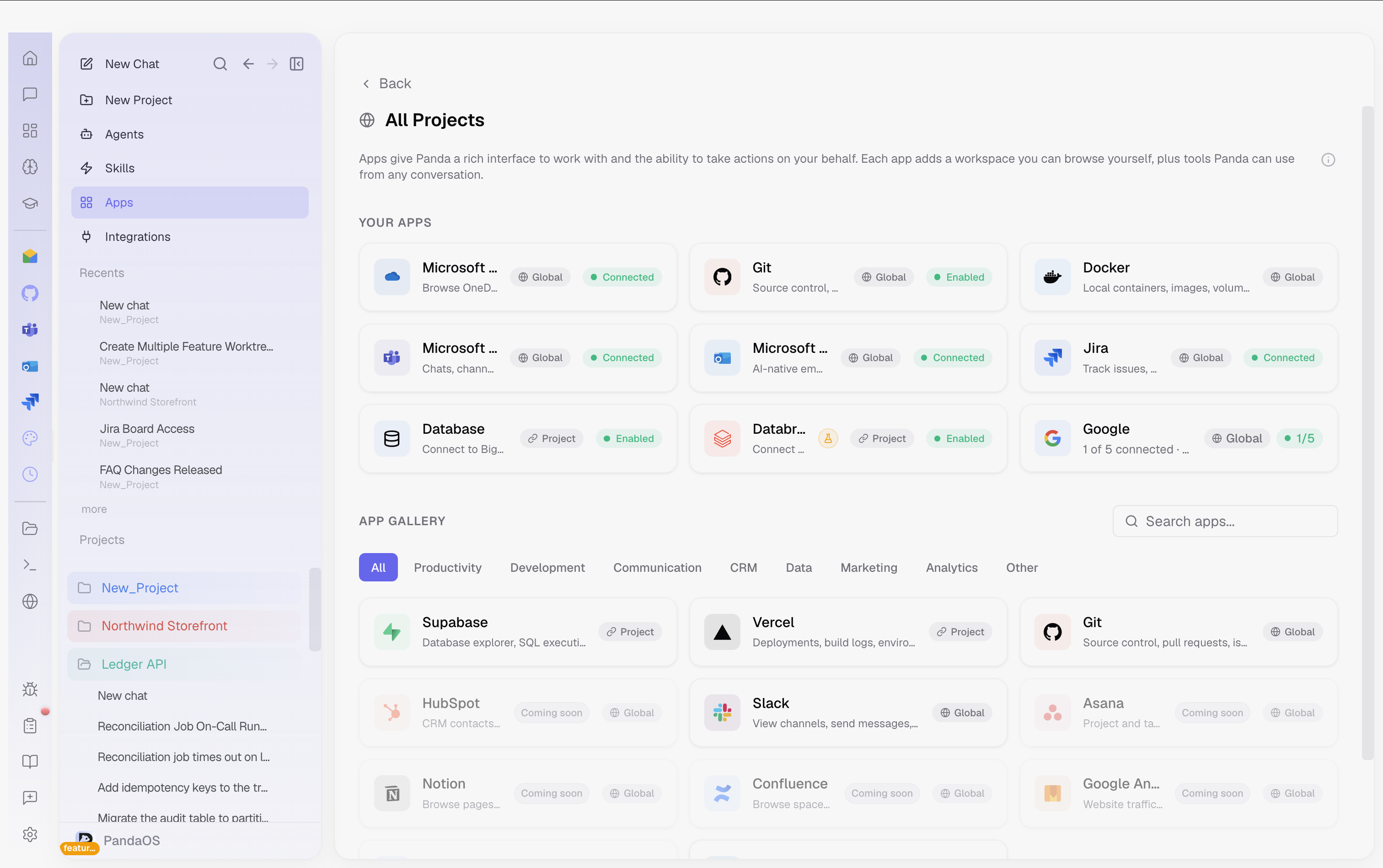
The Actions toggle
Every connected app has an Actions toggle in its settings card. This is a simple on/off switch that controls whether the app's tools are available to PandaOS at all.
- On - The app's tools are active and PandaOS can use them during conversations.
- Off - The app is fully disconnected from Panda. Its tools are not discoverable or callable.
This is a coarse control. It answers the question: should PandaOS have access to this app? For finer control over individual tools within an app, see per-tool permissions below.
Per-tool permissions
When Actions is on, you can control each individual tool within that app. Every tool has three permission levels:
- Auto - The tool runs without asking. PandaOS uses it freely when the task calls for it. Best for low-risk actions like reading emails or listing files.
- Ask - PandaOS must request your confirmation before using the tool. You see what it wants to do, with what parameters, and approve or reject. Best for actions with real consequences: sending emails, deleting rows, triggering deployments.
- Off - The tool is blocked entirely, even though the rest of the app's tools remain active.
This gives you precise control over your trust boundary. You might let PandaOS read your Gmail freely (Auto), require confirmation before sending (Ask), and block it from deleting messages entirely (Off) - all within the same app.
Per-app Spotlight control
Each app whose actions make its tab follow along has its own Spotlight toggle in its settings card. This controls whether the app's tab follows along while PandaOS uses it. Asking PandaOS to open the app still opens it. See What are Apps for how Spotlight works.
Some apps require additional setup beyond an account connection. See Global vs Project Apps for how project-scoped apps work.