
Connectors (MCP servers)
Add a connector, an MCP server with tools Panda calls in a chat, in every project or only in one.
Feature Updated 18 Nov 2026What a connector is
A connector is an MCP server, a small program that hands Panda extra tools. Examples are a search engine, a design tool or your company's own API. MCP, the Model Context Protocol, is the open standard these servers speak, so one server works with any assistant that supports it. Panda calls a connector's tools inside a chat, and a connector has no tab of its own.
Apps are different. Gmail, Calendar, Vercel, Supabase and Git each have a tab beside the chat, see Apps. Add a connector when the service you need is not on Apps, Explore.
Where to find them
Open Customize in the sidebar and pick Connectors. Yours lists the connectors you added, and Explore lists more to add. Custom connector, at the top right, adds a server that is not listed. Adding a connector walks through both.
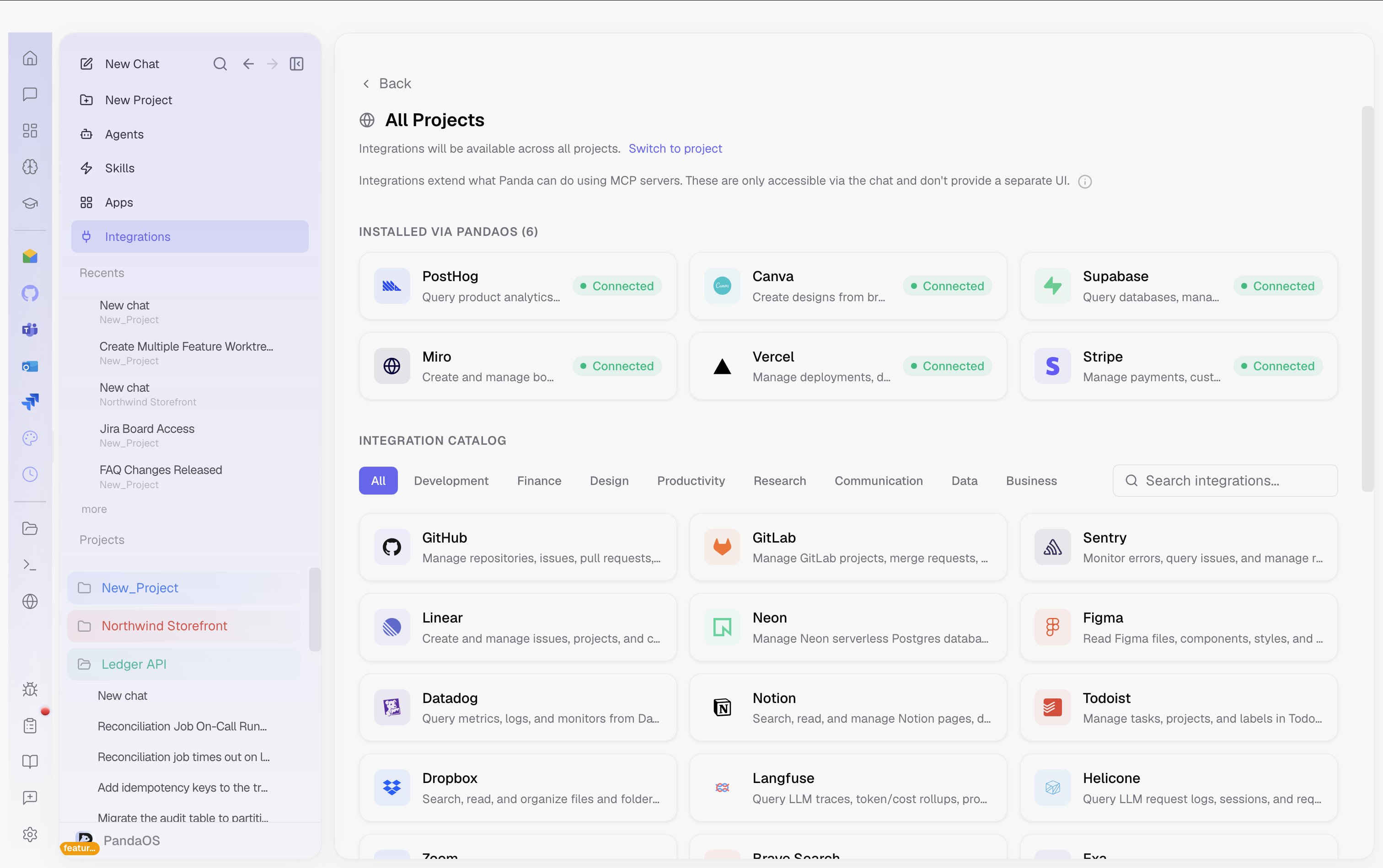
What you see
Each row shows its status. A connected server shows a check mark. One that needs a sign-in offers Connect or says Needs sign-in. Others say Off or Error, and a spinner shows while it connects. A local server whose program is missing says which program it needs.
A server from Explore shows its own logo. One without a logo shows the kind instead. A terminal means a local server, a program PandaOS starts on your computer. A globe means a remote server, reached over the network. When a project holds its own copy of a server that is also saved under Global, chats use the Global one. The copy is not a row of its own. It is named on a line that starts Using your Global connection. Switch a server off without removing it.
Who gets a server
Where a server is saved decides who gets it.
| Scope | Who gets it |
|---|---|
| Global | Every project on this computer |
| Project, shared | Everyone on the project's repository, because it is written into .mcp.json in the project and committed |
| Project, local | Only you, only in this project, not committed |
A connector added from Explore asks where it works. Everywhere saves it as Global, and picked projects save it as Project, local. Custom connector, opened for one project, offers Project, which is the shared one, and Global.
PandaOS writes each scope where the harness the project runs on expects it. A server keeps working when you switch between Claude Code, Codex and OpenCode.
The built-in browser server
PandaOS runs its own server, pandaos-browser, whenever the browser preview is open. It is what lets Panda navigate, click, type and take screenshots in your running app. It starts and stops with the panel, and there is nothing to set up.
MCP servers on a machine
Open the machine app and choose Connections, then Connectors. Press Send beside a global or project-local server to copy its configuration. Any API key in its environment or headers travels with it, as does a manually supplied client secret. Project-local servers are personal to this computer until you send them. They require the project to have been sent first and are saved in its mapped machine checkouts. Global servers are saved for all projects on that machine.
A check mark confirms the configuration is held on the machine. It does not prove the server can connect or that a chat has used its tools. A local server's command and dependencies must exist on the machine. A remote server must be reachable from it; a URL using localhost still means the machine itself.
OAuth-managed servers that depend on this computer's browser login cannot be sent. Their row explains why. Built-in PandaOS and browser servers are managed separately for each chat. Project-shared configuration travels with the repository rather than this Send action. Unresolved environment references and desktop file paths may still need setup on the machine.
Your original configuration stays on this computer. Later edits are not synced automatically; press Send again to copy them. Removing a local entry does not remove its machine copy.