
Mobile Access
Follow a run, approve a plan and read files from your phone.
Two ways to reach it
On the same WiFi it just works, and that is the lowest latency. Away from home it goes over Tailscale, which needs Tailscale on both machines.
Pair a phone
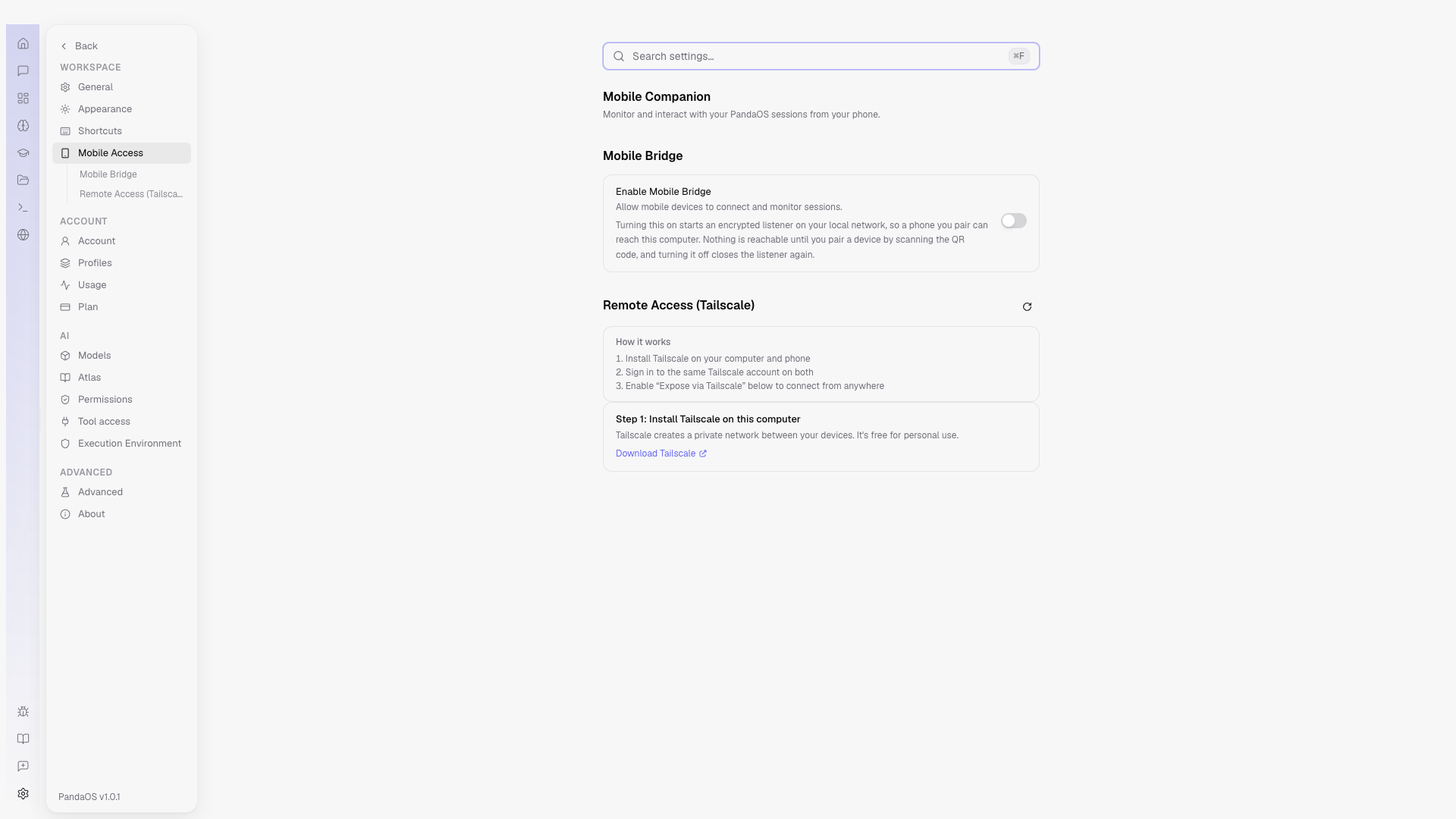
- Turn on the mobile bridge in Settings.
- Scan the QR code with your phone. — Or copy the token and paste it in by hand.
- Open the companion. — It reconnects on its own if the connection drops.
What works there
Most of the desktop: the chat with streaming, plan approvals and questions, your project files, and the work in flight. It is built for following and approving rather than for building.
Managing devices
Settings lists what is connected. Disconnect one device, or regenerate the token to force every device to pair again.
Local WiFi vs. Tailscale
Two connection modes:
- Local WiFi - your phone and desktop are on the same network. This is the default and requires no extra setup. Lowest latency.
- Tailscale - access PandaOS from anywhere, even when you are not on the same network. Requires Tailscale installed on both your desktop and your phone, signed into the same account. Once set up, PandaOS exposes itself over your Tailscale mesh network with WireGuard encryption. Enable it in Settings under the Remote Access section.
Tailscale is optional. If you only use PandaOS from home or the office, local WiFi is all you need.
What you can do on mobile
The mobile companion gives you access to most of what PandaOS offers on desktop:
- Chat - full conversation interface with real-time streaming, plan approvals, and question prompts
- Files - browse your project's file tree and view code
- Git - see commit history, branches, diffs, and changes
- Terminal - read terminal output
- Voice input - dictate messages instead of typing
The mobile interface streams updates in real time. If you start a task on desktop and walk away, you can follow its progress and approve decisions from your phone.
Setup
-
Open Settings > Mobile Access
-
The bridge server configuration shows:
- Server status, whether the bridge is running
- QR Code, scan with your phone's camera to connect
- Connection URL, the local network address (e.g.,
http://192.168.1.100:3312)
-
Scan the QR code or enter the URL in your phone's browser
-
Add to Home Screen for an app-like experience (PWA)
Requirements
- Your phone and computer must be on the same local network (or connected via Tailscale)
- The bridge server runs on port 3312 by default
- The bridge server must be running (check Settings > Mobile Access)
Settings on Mobile
The mobile settings view provides:
- Theme selection, apply any of PandaOS's themes
- Model selection, change the default model
- MCP server management, view, add, and remove MCP servers
Tailscale Support
For remote access outside your local network, connect your devices via Tailscale. Configure the Tailscale hostname in the Mobile Access settings, the QR code will update to use your Tailscale address so you can access PandaOS from anywhere.
Building the Mobile PWA
The mobile PWA is a separate build from the main Electron app:
npm run build:mobileThis outputs to out/mobile-pwa/ and is served by the bridge server. Changes to mobile code require a rebuild, it does not use HMR.