
Agent Canvas
Lay chats, apps, terminals and browsers out side by side on one board, and switch between saved layouts.
Feature Updated 20 Nov 2026What the Agent Canvas is
The Agent Canvas is a board without edges where you place cards, each holding one thing, and they all run at the same time. Use it when you need to see several things at once. That might be comparing two approaches, keeping source material in view while you build, or running several chats and collecting the answers.
Open Agent Canvas from the dock, or press Cmd+Shift+L, or Ctrl+Shift+L.
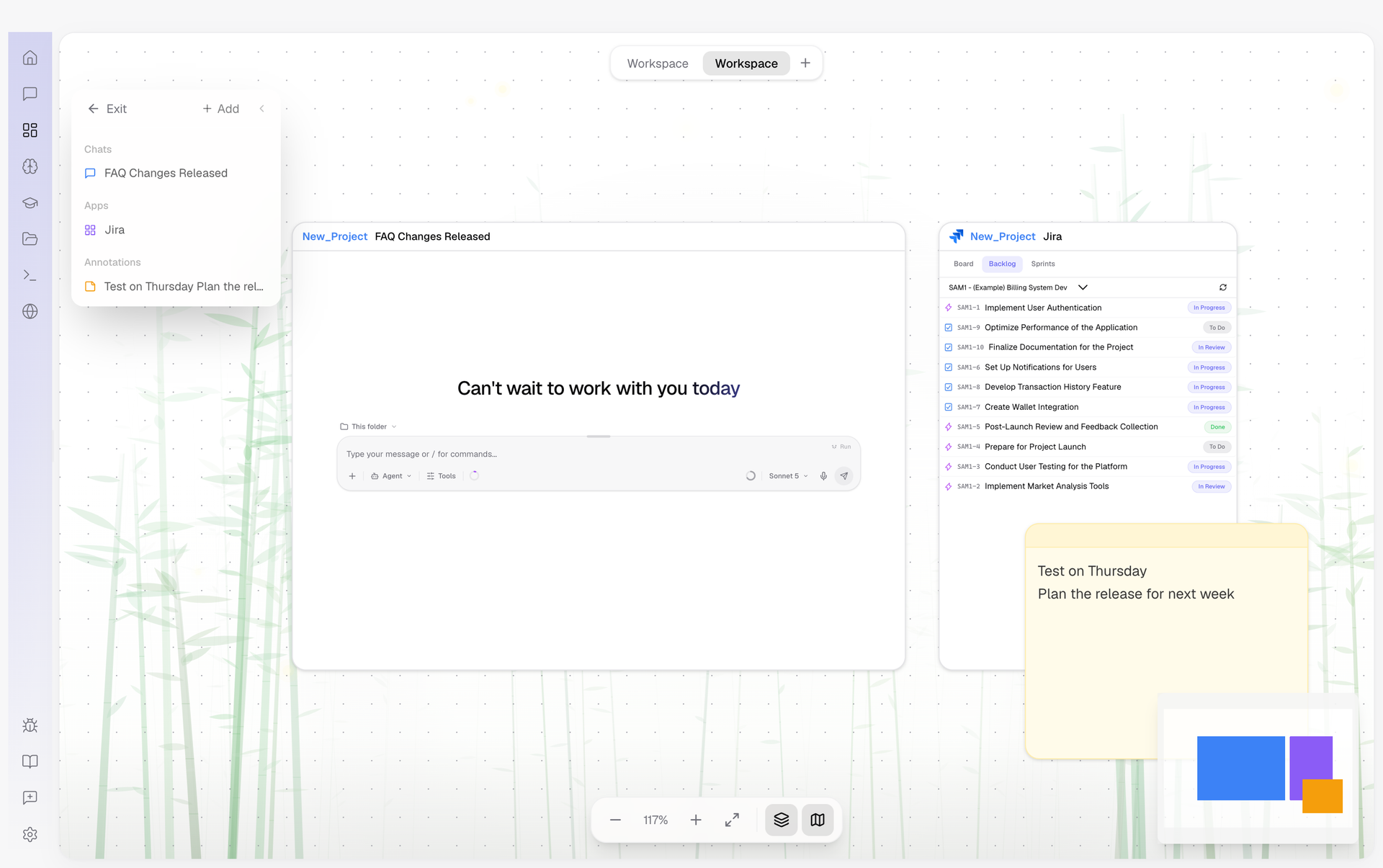
What a card can hold
| Card | What it holds |
|---|---|
| Chat | A whole conversation, New Chat or Existing Chat. Several can run side by side. |
| Apps | Any connected app, with the same view as its dock panel. |
| Browser | A Web Browser for any address, or an Agent Browser that a chat card on the same canvas drives. Add the chat card first. |
| Utility | A Terminal or a File Explorer for the project. |
| Image | An image file. |
| Note, Text, Frame | A sticky note, a free text label, or a coloured frame that moves the cards inside it together. |
A plan, the review of a chat's changes, credentials, a single-file viewer, a project overview and the apps you built are not cards. They open as windows beside a chat, see Panels and windows.
Lay out a board
- Add a card from the toolbar, or right-click the board.
Cards are grouped by kind in the picker. Images can be dropped straight onto the board. - Drag a card to place it, drag a handle to resize it.
Guide lines appear near other cards, and the card snaps into line. - Zoom and pan to work at the scale you need.
Zoom in, Zoom out and Fit all are in the toolbar, with a card navigator and a minimap for large boards.
Named views
One Agent Canvas can hold several views, each with its own layout and cards. Keep one for coding, with a chat, a terminal and a browser. Keep another for research, with several chats and notes, and another to watch apps side by side.
Switch views from the tab bar at the top, where you also create, rename, duplicate and delete them. Each view keeps its own layout, so switching back restores it as you left it.
What else a card can do
- Zoom: zoom the content inside a card, from 30% to 100%.
- Duplicate: copy a card with its content.
- Open in new window: move a card into its own window, see Panels and windows.
- Undo and Redo: up to 30 steps.