
Dashboard
See every project and your recent chats on one screen, and add a new project from there.
Feature Updated 20 Nov 2026What the dashboard is
The dashboard is the home screen of PandaOS. It shows every project you have opened. Pick up any of them in one click.
Top to bottom: a greeting, a search and command bar, your recent chats, then a tile per project with its icon and name. A dot on a tile means a chat there is working, waiting on you or unread.
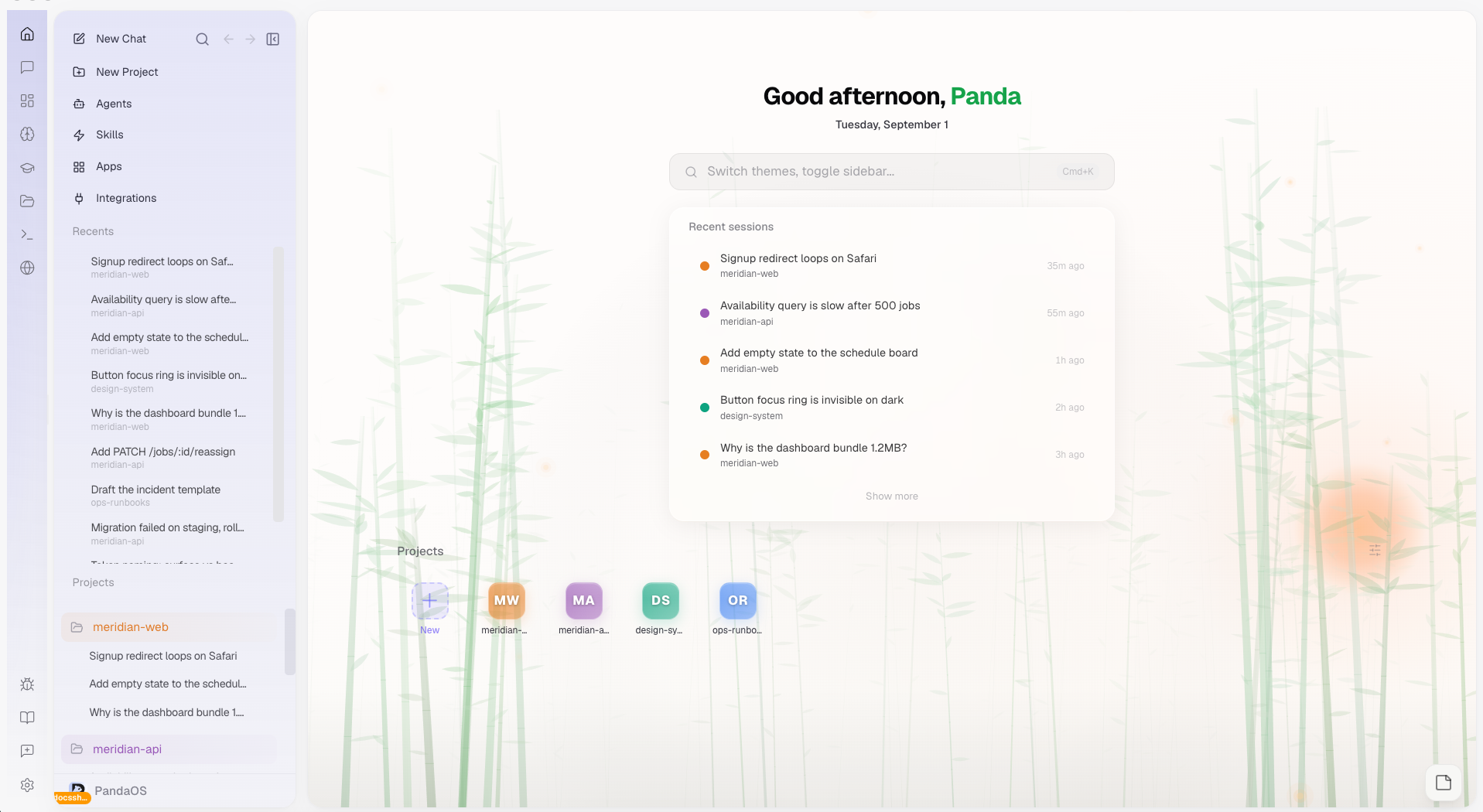
Where to find it
Press Cmd+D, or Ctrl+D. Or press Home in the dock, or pick Go Home in the command palette.
Add a project
Press the New tile at the start of the project grid, or New Project in the sidebar. From there, pick New project, Open existing folder or Clone a repository, which takes any git address. Or drag a folder anywhere onto the dashboard. A message confirms it, and says how it will run the project if it recognised one.
The search and command bar
Type in the bar near the top to filter commands, such as Open Settings, Change Theme or Clone Repository, and to jump to any project. Press Cmd+K, or Ctrl+K, to open the same list. Press Esc to close it.
Arrange the tiles
The Desktop settings button, the sliders beside the Projects heading, opens these choices:
- Sort by: Recent activity or Name.
- Group by workspace: each workspace gets a column of its own. In this view the New tile and the right-click menu are not shown, so use New Project in the sidebar.
- Icon size: small, medium or large tiles.
- Open Settings.
Tiles carry no dev server controls. Open the project and use the dev server indicator in the dock.
Right-click a tile
| Action | What it does |
|---|---|
| New chat | Opens the project's overview with a message box. The chat starts when you send |
| Project Overview | Opens the project's overview page |
| Project Settings | Opens the project's settings |
| Workspace | Moves the project into a workspace, or None takes it out |
| Color | Picks the project's colour |
| Archive all chats | Archives every chat in the project |