
Templates
Start new projects from pre-configured starters that include rules, dev server settings, and starter files.
Choose a Project Starter
When you create a project, choose Start Fresh for an empty folder or pick a Project Starter for a ready-made setup. Starters can include files, rules, a dev-server command and recommended skills.
Pick the closest match, then customize it after the project opens. Starters with extra choices show a Configure step; you can skip optional app connections and add them later. The website has the full starter catalog and setup details.
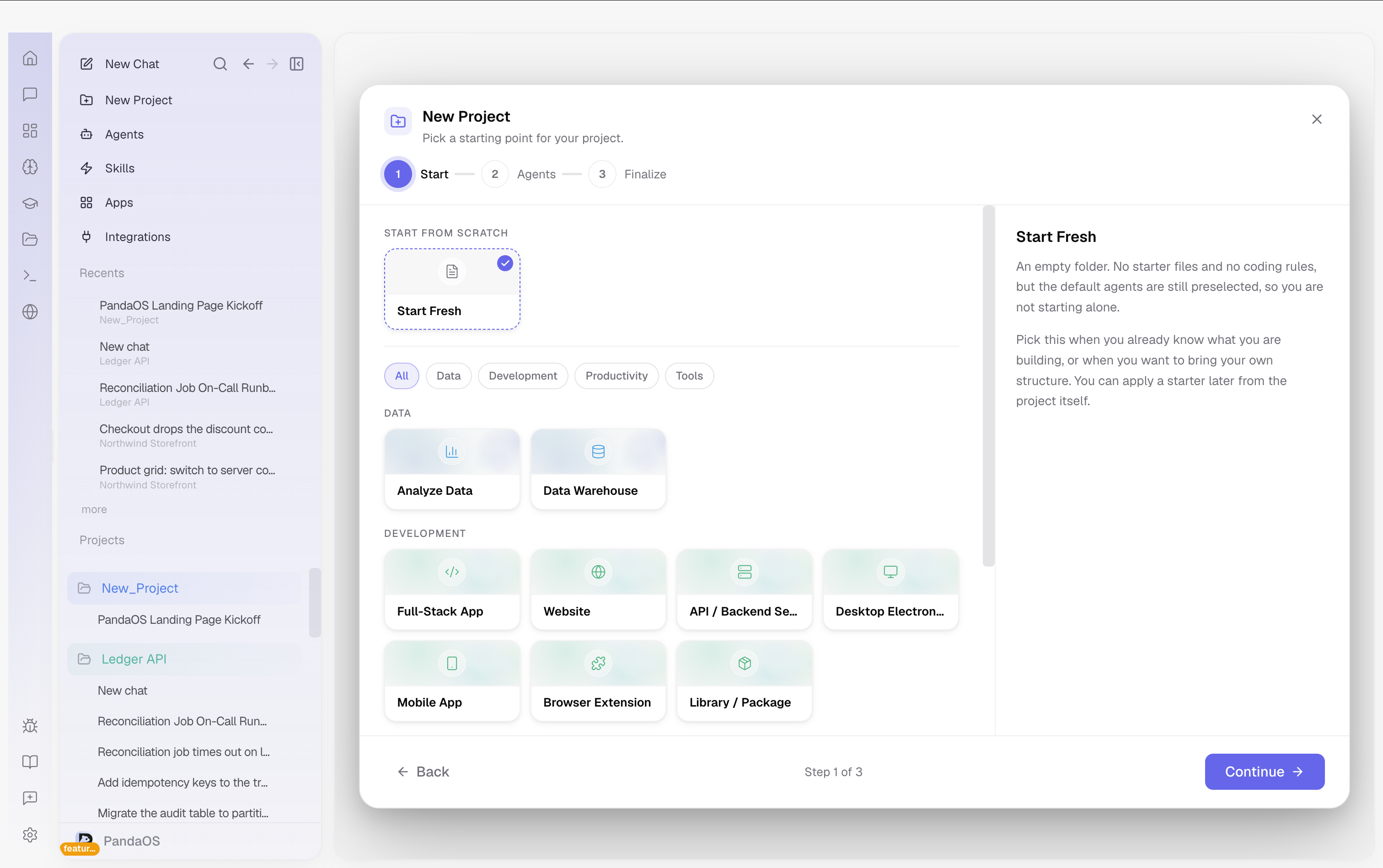
What ships
Twelve starters, plus Start Fresh for an empty folder. Development covers Full-Stack App, Website, API / Backend Service, Desktop Electron App, Mobile App, Browser Extension and Library / Package; Productivity has Personal Assistant and Knowledge Map; Data has Analyze Data and Data Warehouse; Tools has MCP Server.
What a Project Starter saves you
Setting up a project from scratch means configuring rules, dev server commands, and starter files every time. A Project Starter captures that setup once so you can reuse it. They are especially valuable when you have a proven project structure you want to repeat, like a Next.js app with your preferred linting rules and folder conventions, or a Python data project with your standard notebook layout.
What a Project Starter includes
A starter can bundle any combination of:
- Starter files - the initial codebase or folder structure that gives you a working starting point.
- Rules - pre-configured instructions so Panda already knows the conventions for this type of project.
- Dev server settings - the correct command and port for the framework, so the live preview works immediately.
- Recommended skills - Skills that are particularly useful for the project type, such as database skills for a full-stack app.
The Personal Assistant starter
The Personal Assistant starter is built for running a working day rather than building software. Everything in it revolves around one file, status.md at the project root, which holds what needs doing today, what you are waiting on, your open loops, the decisions you have made, and what was recently finished.
Two skills keep that file true, from opposite directions:
- orchestrate runs at the start of the day. It sweeps whatever you have connected (mail, calendar, tasks, chat, boards), works out what actually needs you, and rewrites the top of the file. It also tells you what it could not reach, so a brief that is missing half your day never looks like a quiet one.
- capture runs when you wrap up. It reads back what happened, separates what was decided from what is still open, asks about anything ambiguous instead of guessing, and records the outcome. In a team project it also routes other people's action items to your board instead of burying them in a personal file.
A third skill, brief, loads the current state at the start of a session so you are not re-explaining yourself. All three come with the Chief of Staff agent, which the starter hires for you. You can also hire it into any other project from the agent browser, or install the skills on their own from the skills catalog.
Setup choices
Rhythm decides the shape of the loop: a Daily Brief (a morning sweep and an end-of-day write-back), Continuous (capture at the end of every session, no fixed ritual), or a Weekly Review (light daily passes with one real reconciliation per week).
Who's involved decides where captured work goes. Just me keeps every action item in your own file. Me and my team adds the routing rules, sweeps team surfaces like mentions and your board columns, and sends team action items to the board with a named owner rather than into a file nobody else reads.
Connecting apps
The Connect step groups apps by the job they do (email, calendar, tasks, notes, files, and for team projects chat and boards) rather than by vendor. Connect one per row and the assistant uses whatever is available when it runs. The whole step is optional: skip it and connect the same apps later from Apps, and nothing about the project changes.
What stays yours
The skills are deliberately generic. Anything personal (who you are, your working hours, which chat spaces are worth reading, whose board columns are whose) lives in knowledge files under .pandaos/knowledge/, which the assistant fills in by interviewing you on the first run. That split is what lets the same starter work whether you are on Gmail and Slack or Outlook and Teams.
The curated list of what to watch matters more than it sounds. Without one, a morning brief includes every dead channel and unread newsletter, and stops being read within a week.