
What a project is
A folder Panda knows: its rules, its documents, its apps and its dev server.
Monorepos: set the app root
If the thing that runs lives in a subfolder, point the app root at it,
apps/frontend/for instance. Dev servers and file work happen there, while Git history and cross-package references still see the whole repository.
What it adds
A bare chat knows nothing about your work. A project binds a folder to a workspace, and every chat in it inherits the same context:
- Rules it follows without being reminded.
- Knowledge files for what the code does not say.
- A dev server with a live preview beside the chat.
- Git, with written commit messages.
- Connected apps scoped to this work.
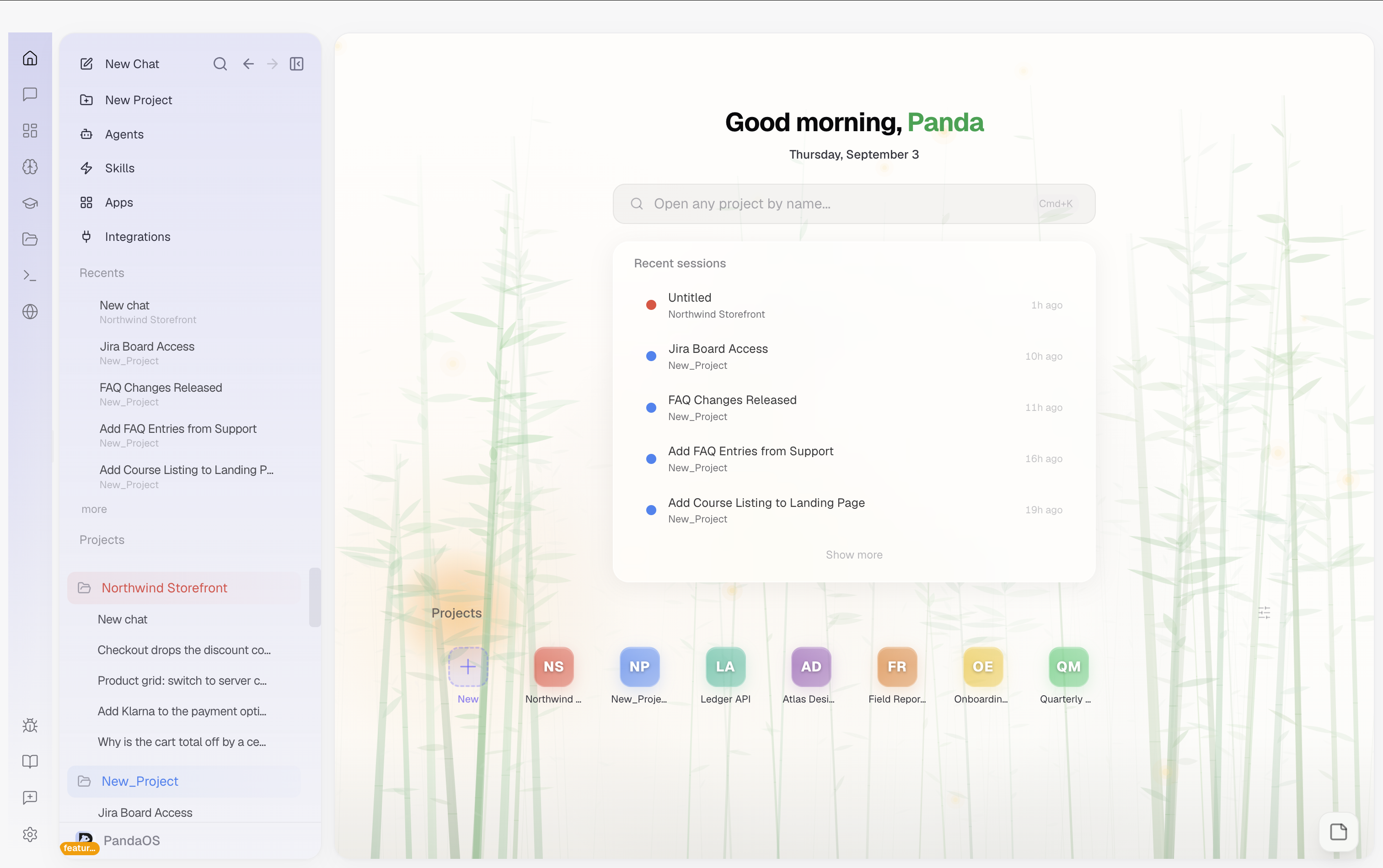
Make one
Point PandaOS at any folder. For code it works out how the project is built and suggests how to start it; for writing, research or design it simply indexes what is there so Panda can refer to it. You can also start from a template.
Monorepo support
If your code lives in a subfolder of a larger repository, set the app root to the subfolder that actually runs, for example apps/frontend/. PandaOS treats that subfolder as the working directory for dev servers and file operations, while still seeing the wider repository for Git history and cross-package references. This is essential for monorepos where the deployable unit is a subdirectory, not the repo root.
How to Clone
- Click the New Project tile on the Dashboard, then choose Clone from GitHub
- You can also use the Command Palette (
Cmd+K) and select "Clone Repository"
Authentication
If you haven't authenticated with GitHub yet, PandaOS uses the GitHub Device Flow:
- Click "Sign in with GitHub"
- A device code appears (e.g.,
ABCD-1234), it's automatically copied to your clipboard - Click "Open GitHub" to go to the verification page
- Paste the code on GitHub and authorize PandaOS
- PandaOS detects the authorization automatically (it polls in the background)
Once authenticated, your GitHub username and avatar appear at the top of the dialog. You stay authenticated across sessions.
Skip auth: If you just want to clone a public repo, click "or paste a URL manually" to skip authentication and enter the URL directly.
Selecting a Repository
After authentication:
- Start typing in the Repository URL field, an autocomplete dropdown shows your repos (up to 20 results)
- Each repo shows its name, description, language, and whether it's private
- Use arrow keys to navigate, Enter to select, or paste a full URL
- The Clone to path auto-fills based on the repo name (e.g.,
~/Projects/my-repo) - Click Browse to choose a different destination folder
Cloning
Click "Clone" to start. A progress indicator shows the clone status. When complete:
- The repository is cloned to the specified path
- PandaOS automatically adds it as a project
- The Project Setup Dialog appears for dev server configuration
- A toast notification confirms the project was added
Disconnecting
To disconnect your GitHub account, click the "Disconnect" button next to your username in the clone dialog. This removes the stored token.