
The board
A board that holds chats, apps, terminals and browsers side by side.
What goes on it
Every card holds one thing, and they run at the same time.
- Chat. A full conversation. Several can run in parallel on one board.
- App. Any connected app, in its own card.
- Browser, terminal, file explorer.
- Notes, text, frames and images, for the parts that are not live.
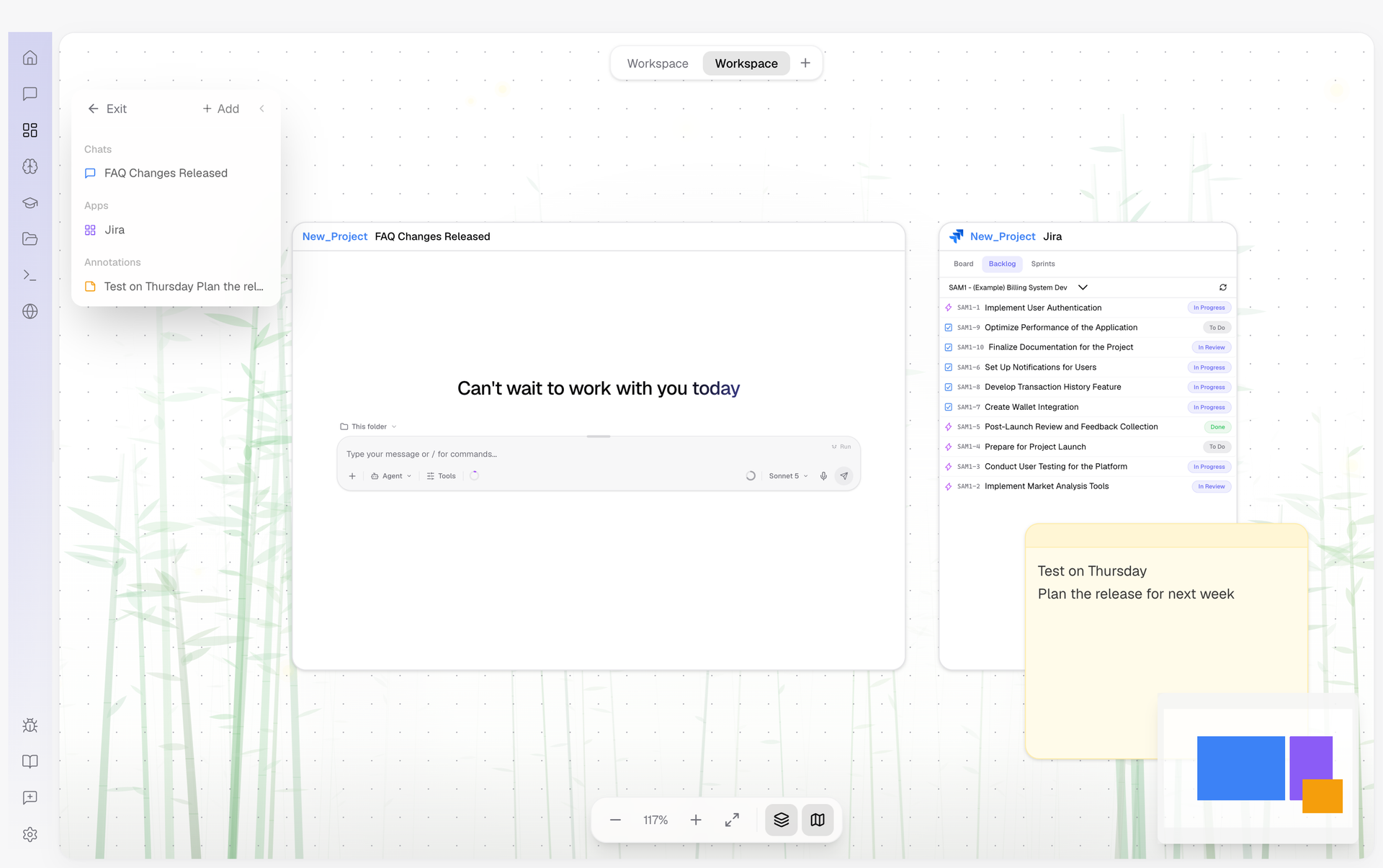
Build one
- Add a card from the toolbar, or right-click the board. — Cards are grouped by kind in the picker.
- Drag to place, drag a handle to resize. — Images can be dropped straight onto the board.
- Zoom and pan to work at the scale you need.
When it earns its place
When you need to see things at once: comparing two approaches, keeping source material in view while building, or running several conversations and collecting the answers.
Card types
Every card on the Canvas holds one piece of content. The available types:
- Chat - a full chat session. You can add a new conversation or open an existing one. Each chat card works independently, so you can run multiple conversations in parallel on the same board.
- App - any connected app (Gmail, Supabase, Trello, etc.) with its full workspace UI, the same interface you see in the dock tab.
- Browser - three modes: a standalone web browser for any URL, your project's dev server preview, or an agent-controlled browser linked to a chat card on the same Canvas.
- Terminal - a project shell, identical to the integrated terminal.
- File Explorer - browse and open project files.
- File Viewer - view a specific code file.
- Plan - a plan file produced in Plan Mode, so the plan stays visible next to the chat carrying it out.
- Review - the code review view for the current changes.
- Credentials - the project's environment variables and secrets, see Dev Servers.
- Overview - a project's overview page, useful as the anchor card of a board.
- Note - a sticky note for quick thoughts, reminders, or annotations.
- Text - a free-form text label with adjustable font size and bold. Useful for titles, section headers, or annotations on the board.
- Frame - a colored container that groups other cards visually. Move the frame and everything inside it moves together.
- Image - display an image file on the board.
Two layout modes
Canvas offers two ways to arrange your workspace:
- Freeform - an infinite board where you place cards anywhere. Drag to reposition, resize with handles, zoom and pan freely. Cards snap to a grid for alignment. This mode is best for creative layouts, complex research boards, or any workflow where you want full spatial control.
- Grid - a tiled layout with predefined arrangements (single panel, two columns, two rows, 2x2 grid, three columns). Panels resize by dragging their borders, and each panel can hold a card as a tab. This mode is best for structured side-by-side work where you want clean splits without manual positioning.
Named views
A single Canvas can hold multiple views, each with its own layout and set of cards. Think of views as saved workspaces within the Canvas: one view for your coding setup (chat + terminal + browser), another for research (multiple chats + notes), another for monitoring (apps side by side).
You switch between views from the tab bar at the top. You can create, rename, duplicate, and delete views. Each view saves its layout state independently, so switching back restores everything exactly as you left it.
Adding and managing cards
Add cards from the toolbar or by right-clicking the Canvas background. The card picker groups options by type: Chat, Apps, Browser, Utility (terminal, file explorer), and annotations (note, text, frame, image). You can also drag and drop images directly onto the board.
Once placed, cards support:
- Resize - drag the handles to make a card larger or smaller
- Scale - zoom the content inside a card independently (30% to 100%)
- Duplicate - copy a card with its content
- Detach - pop a card out into its own separate window (see Detachable Windows)
- Connect - draw edges between cards to visualize relationships
- Undo/Redo - up to 30 operations