
The dashboard
Every project you have opened, with your recent chats and the dev server controls.
Your rules follow the project
PandaOS keeps your rule files synced to every registered project, so your instructions stay the same everywhere, whichever connection the project runs on.
Open it
- Press
Cmd+D, orCtrl+D. - Or press Home in the dock.
- Or open the command palette and pick Go Home.
What is on it
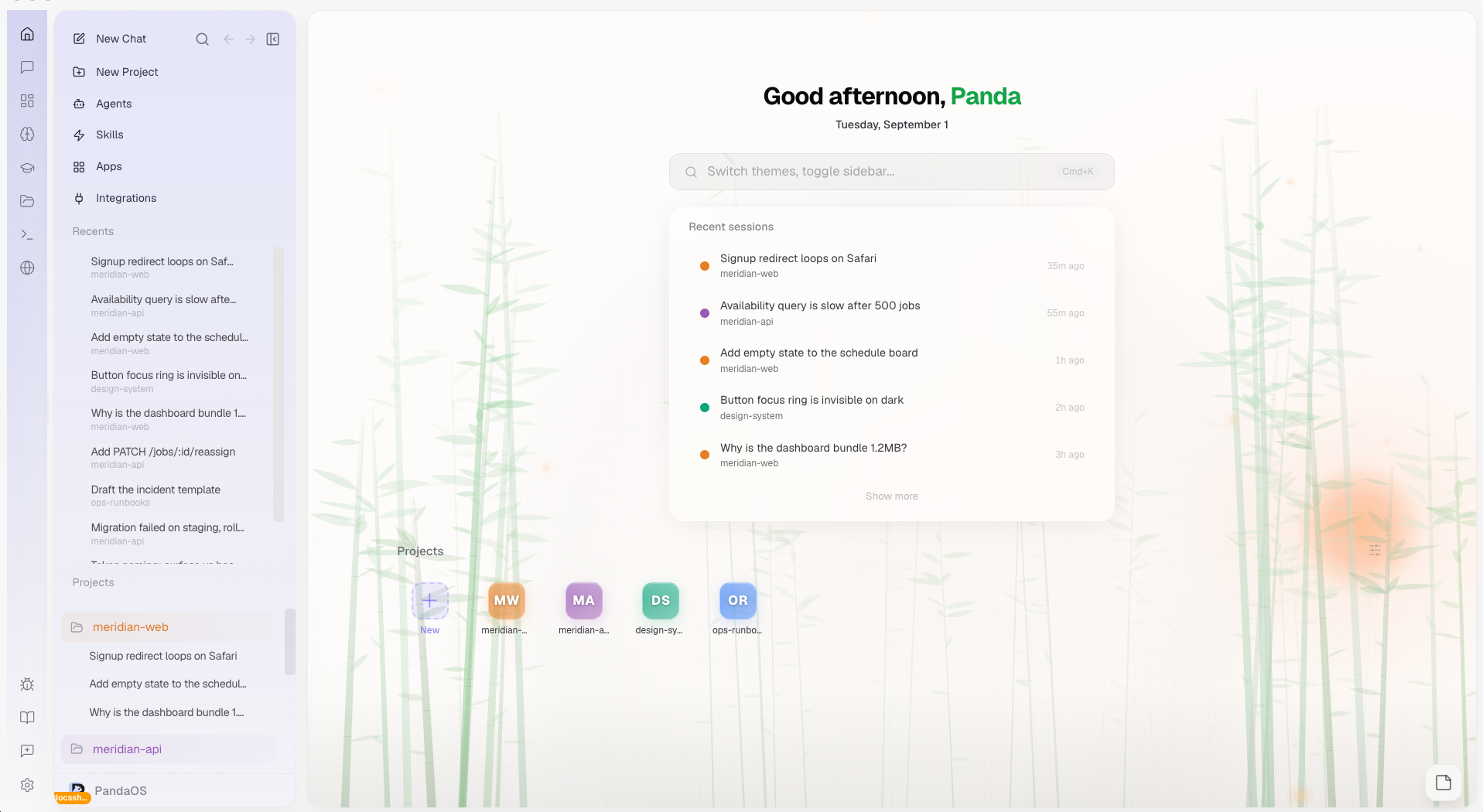
A greeting, a search and command bar, your recent chats, then a card per project. The grid is one column on a narrow window, two on a medium one, three when there is room.
Add a project
- Press the New Project tile. — Create a new folder, open one you already have, or clone from GitHub.
- Or drag a folder anywhere onto the dashboard. — A message confirms it, and says how it will run the project if it recognised one.
Dashboard Layout
From top to bottom, the Dashboard shows a greeting, a search & command bar, your recent sessions, and a grid of project cards.
Where are Settings? Open Settings from the gear at the top-right of a project's overview page, the Settings button in the Workspace Dock at the bottom of the window (available on every view), the Command Palette (
Cmd+K→ "Open Settings"), orCmd+,. On the project grid you can also use the search bar or the Desktop settings popover (see below).
Search & Command Bar
A combined search and command bar sits near the top (also opens with Cmd+K / Ctrl+K). Start typing to filter a dropdown of:
- Commands, open Settings, Change Theme, Toggle Sidebar, Add Project, Open App Gallery, Clone Repository, Back to Session
- Projects, jump straight to any registered project
Press Esc to close. When nothing matches, it shows "No results found".
Recent Sessions
A card directly below the search bar lists your most recently active sessions.
Projects
A responsive grid of project cards. The Projects heading has a Desktop settings button (sliders icon) on its right that opens a popover to Group by workspace, change Sort by (Recent / Name), set Icon size (small / medium / large), or Open Settings.
Project Cards
Projects are displayed in a responsive grid (1 column on mobile, 2 on tablet, 3 on desktop).
Card Sections
Cards are divided into two groups:
- Active, projects with running sessions or dev servers
- Idle, projects without current activity
Card Contents
Each project card shows:
- Project name, the folder name
- Last message, preview of the most recent chat message
- Session count, number of active sessions
- Dev server status, current state indicator with port number
Dev Server Controls
If a project has a dev command configured, the card shows server controls:
| State | Indicator | Available Actions |
|---|---|---|
| Stopped | Gray | Start |
| Starting | Amber pulse | Stop |
| Running | Green | Stop, Restart, Open in Browser |
| Error | Red | Kill Port & Start |
Card Context Menu (Right-Click)
| Action | Description |
|---|---|
| Open | Switch to the project workspace |
| Start/Stop/Restart Dev Server | Control the project's dev server (when configured) |
| Open in Browser | Open the running dev server in your browser (when running) |
| Apply Template | Apply a project template to generate coding rules |
| Project Settings | Open project-specific settings |
| Set as Personal Space | Designate this project as your Personal Space |
| Remove Project | Remove the project from PandaOS (doesn't delete files) |