
Permissions
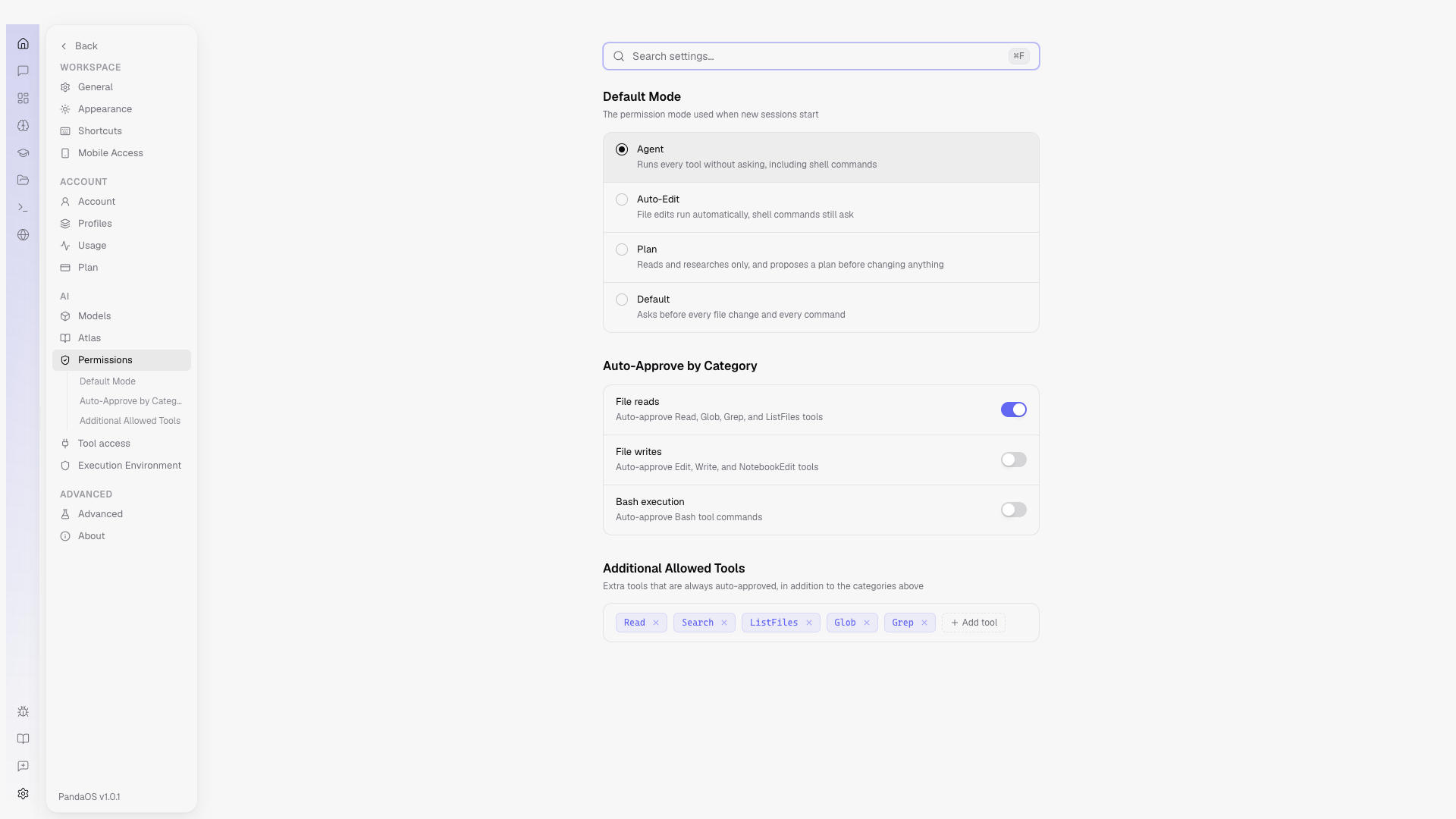
What PandaOS may do without asking, and the mode each new chat starts in.
Dangerous tools start at Ask
Anything that deletes files, runs a shell command or reaches the network defaults to Ask. Raising one to Auto removes the prompt, which is the point and the risk.
What the tab holds
Three things, in this order:
- Default Mode, the mode a new chat starts in. The four are described below.
- Auto-Approve by category, which kinds of action run without a prompt rather than tool by tool.
- Additional Allowed Tools, a list of named tools that never ask.
Per-app tool levels are Auto, Ask and Off, and they live on the app itself rather than here. See Actions and permissions.
Project beats global
Global defaults apply everywhere. A project override tightens or loosens one tool for that project alone, and always wins, which is how a sensitive repository can be stricter than the rest of your work.
The mode in the composer
These levels are the floor, not the whole answer. The mode picker in the chat bar decides how much PandaOS asks on top of them, per chat, and it is the control you will reach for most often.
- Agent runs every tool without asking, shell commands included.
- Auto-Edit runs file edits on its own, and still asks before a command.
- Plan reads and researches only, and proposes a plan before changing anything.
- Default asks before every file change and every command.
Each harness enforces them differently, so the picker prints what the mode means on the engine you are actually running: on Codex, Plan is a read-only sandbox; on OpenCode, it denies edits and commands while leaving reads alone. The labels stay the same so the row you reach for does not move when you switch engine.
Settings, Permissions sets which mode a new chat starts in.
Dangerous tools
Tools that can delete files, run arbitrary shell commands, or make network requests are flagged as dangerous and default to Ask. Raising one of these to Allow removes the approval prompt, so use elevated permissions carefully.
The trust spectrum
Every AI coding tool faces the same question: how much should it do on its own? Too little autonomy and you are approving every keystroke. Too much and it might delete a production database before you can blink.
PandaOS solves this with interaction modes - a per-message or per-project setting that controls how much Panda checks in with you:
- Default - asks before applying file edits and before running commands. The safest starting point for unfamiliar projects.
- Auto-Edit - applies file edits automatically but still asks before running any shell command. Good for active development where you trust the edits but want to review commands.
- Agent - full autonomy. Panda works end to end without interrupting you. Best for well-scoped tasks with clear outcomes.
- Plan - drafts a complete plan and waits for your approval before touching anything. Best for high-stakes changes. See Plan Mode.
You can switch modes at any point, even mid-conversation. Use Agent mode for a straightforward feature, switch to Plan mode when you hit a tricky migration, switch back.
The deeper layers: permissions and sandbox
Interaction modes control when Panda asks. Two deeper layers control what it can do at all:
- Permissions mark each tool capability as allowed, ask-first, or blocked entirely. You can set these globally and override them per project. For example, you might allow file reads everywhere but block destructive shell commands in your production project.
- Sandbox limits which parts of the filesystem Panda can access and which network endpoints it can reach.
These layers stack. Even in Agent mode (full autonomy), Panda still respects your permission rules and sandbox boundaries. Agent mode means "don't ask me about things I have already allowed" - it does not mean "do whatever you want." This layered design lets you grant broad autonomy for routine work while maintaining hard guardrails where they matter.
Questions and approvals in practice
Two types of interactive cards appear in the conversation:
Question cards appear when Panda encounters genuine ambiguity - which of two valid approaches you prefer, which file to target, which database table to use. Instead of guessing (and potentially doing the wrong thing), it asks. You pick an option and Panda continues with your answer. Questions keep Panda aligned with your intent on ambiguous requests without forcing you to over-specify everything upfront.
Approval cards appear when Panda wants to take an action that your current interaction mode requires permission for - a file edit in Default mode, or a shell command in Auto-Edit mode. You can allow or deny each action individually.
The frequency of these cards is directly controlled by your interaction mode. If you find yourself approving every action, switch to a more autonomous mode. If you want more checkpoints, switch to a more cautious one. The right setting depends on the task, not a global preference.